Docker GPU NVML error
nvidia-smi in a Docker container suddenly fails with "Failed to initialize NVML: Unknown Error". The cause, how to confirm it, and four fixes.
- First written
- Category
- DevOps
- Reading time
- 9 min
- Reads
- —
In this entry
When using a GPU inside a Docker container, everything works right after the container starts. Some time later, running nvidia-smi inside the container suddenly prints:
Failed to initialize NVML: Unknown ErrorI ran into this on both Ubuntu 22.04 and 24.04, so it doesn’t seem tied to the OS version. The host had the NVIDIA Container Toolkit installed, and the container got the GPU through something like docker run --gpus all. This post covers the cause, how to confirm it, and several fixes.
Cause
When a container is started with --gpus, the GPU devices are added by the NVIDIA Container Runtime Hook (including the cgroup device access permissions), and the underlying runc doesn’t know about it. Once the container’s configuration is updated later, the container can lose access to the GPU.
What triggers it:
- Running
systemctl daemon-reloadon the host: when Docker uses systemd to manage container cgroups,daemon-reloadmakes systemd reload units that reference NVIDIA GPUs, and the container loses GPU access. Nobody has to run this command by hand; installing or automatically updating packages often triggers it, which is why the failure looks random and “happens after a while.” - Updating the container: for example, changing CPU or memory limits with
docker update. - Missing
/dev/charsymlinks on the host: with certain runc versions and the systemd cgroup driver, it happens even when the devices are requested explicitly on the command line. Newer runc versions don’t have this problem, and newer NVIDIA drivers create the required symlinks.
Confirming the problem
On the host, run:
sudo systemctl daemon-reloadThen, inside the container, run:
nvidia-smiIf you see Failed to initialize NVML: Unknown Error, this is the problem.
Recovering a broken container
Delete the container and create it again, and the GPU comes back. Without one of the fixes below, it will break again.
docker rm -f <container-name>
docker run ...   # recreate with the original arguments
# Or with Compose:
docker compose up -d --force-recreate
Fixes
1. Switch to cgroupfs
Set /etc/docker/daemon.json to manage cgroups with cgroupfs instead of systemd, so daemon-reload no longer affects containers. Everything here is done on the host.
sudo vim /etc/docker/daemon.jsonAdd this option. If the file already has other settings, merge it into the same JSON object rather than overwriting the file:
"exec-opts": ["native.cgroupdriver=cgroupfs"]Example after merging:
{
  "exec-opts": ["native.cgroupdriver=cgroupfs"],
  "runtimes": {
    "nvidia": {
      "args": [],
      "path": "nvidia-container-runtime"
    }
  }
}
Restart Docker. This first stops every container on the host; only containers with a restart policy (such as always or unless-stopped) come back automatically, and the rest have to be started by hand, so schedule it.
sudo systemctl restart dockerCheck that the setting took effect (requires admin privileges):
docker info | grep -i cgroupThe output should include Cgroup Driver: cgroupfs:
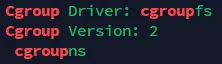
Finally, repeat the steps in “Confirming the problem”: after daemon-reload, run nvidia-smi inside the container and confirm the error is gone.
Limitations of this fix:
- It only prevents failures caused by
daemon-reload. It doesn’t prevent failures caused bydocker update. - If the host also runs Kubernetes, the kubelet and the container runtime must use the same cgroup driver, and Kubernetes recommends systemd. Check this before switching to cgroupfs (see the explanation below).
2. Request GPU devices explicitly
When starting the container, in addition to --gpus, add the GPU and control device nodes explicitly with --device, so runc knows about them and they aren’t removed when the cgroup settings are reapplied.
docker run --gpus all \
  --device /dev/nvidia0 \
  --device /dev/nvidiactl \
  --device /dev/nvidia-uvm \
  --device /dev/nvidia-uvm-tools \
...- With multiple GPUs, also add
/dev/nvidia1,/dev/nvidia2, and so on. Runls /dev/nvidia*to see which devices exist. - In docker-compose.yml, add a
devices:list under the service. - For the NVIDIA Kubernetes device plugin, set the Helm option
compatWithCPUManager=true.
3. Use CDI
Use CDI (Container Device Interface) to add the GPU to the container. The required device nodes are written into the container’s actual configuration, so access survives both daemon-reload and container updates.
# Generate the CDI spec
sudo nvidia-ctk cdi generate --output=/etc/cdi/nvidia.yaml

# Start a container using the CDI device name
docker run --rm --device nvidia.com/gpu=all ubuntu nvidia-smi -L- CDI requires a newer version of Docker. If it isn’t enabled by default, add
"features": {"cdi": true}to daemon.json and restart Docker. - Regenerate the CDI spec after updating the NVIDIA driver.
4. privileged (not recommended)
Give the container full privileges in docker-compose.yml:
privileged: trueThis works because a privileged container can access every device on the host and isn’t subject to cgroup device restrictions. The cost is that the container effectively has root on the host, so a compromised container directly affects the host.
The systemd and cgroupfs cgroup drivers
Fix 1 hinges on the cgroup driver, so here’s what that actually is.
What cgroups are
cgroups (control groups) are the Linux kernel’s mechanism for limiting and accounting for process resources: CPU, memory, I/O, the number of processes, and which devices can be accessed. Docker’s resource limits (--memory, --cpus) and access to devices such as GPUs are all built on cgroups.
cgroups are exposed as a filesystem mounted at /sys/fs/cgroup; creating directories and writing files there is how cgroups are configured. There are two versions:
| cgroup v1 | cgroup v2 | |
|---|---|---|
| Hierarchy | A separate tree for each resource, such as CPU and memory | All resources in a single tree (unified hierarchy) |
| Status | Legacy; deprecated by Kubernetes | The default on Ubuntu 22.04 and later and most newer distributions |
| Other | Safer subtree delegation to containers, plus newer features such as PSI (Pressure Stall Information) |
To check which version a host uses:
stat -fc %T /sys/fs/cgroup/
# cgroup2fs → v2; tmpfs → v1

docker info | grep -i cgroup
# Cgroup Version: 2
What a cgroup driver is
cgroups are just an interface the kernel provides. Who actually creates and writes a container’s cgroup is decided by the cgroup driver. Docker creates containers through runc, and runc supports two drivers:
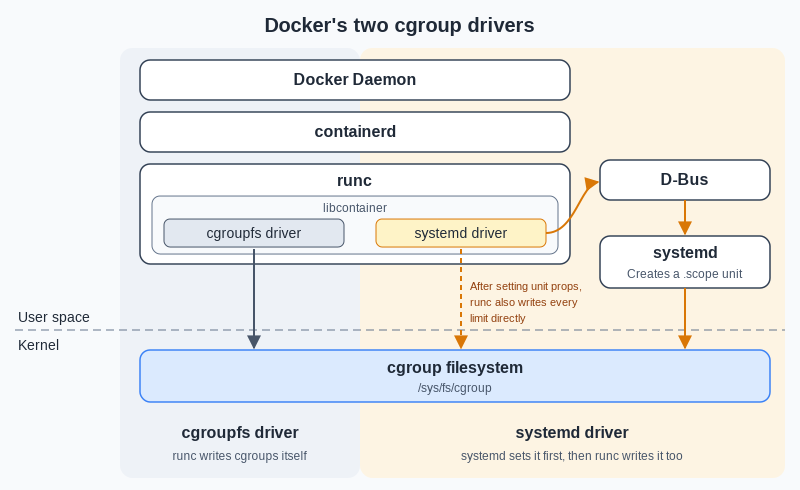
| cgroupfs | systemd | |
|---|---|---|
| Who configures the cgroup | runc creates directories and writes files in /sys/fs/cgroup itself |
runc first asks systemd over D-Bus to create a transient unit (.scope) for the container and set its properties, then writes the cgroup files directly itself as well |
| Where resource limits live | Only in the cgroup files | Set as systemd unit properties where they can be translated (such as MemoryMax, CPUWeight, TasksMax), and every limit is also written to the cgroup files. In runc’s words, the systemd driver is backed by the fs driver |
| Where the container’s cgroup lives | Under /docker/<container-ID> by default |
docker-<container-ID>.scope under system.slice |
| Docker’s default | cgroup v1 hosts | cgroup v2 hosts with systemd available |
To set the driver explicitly, add "exec-opts": ["native.cgroupdriver=systemd"] (or cgroupfs) to /etc/docker/daemon.json, or start dockerd with --exec-opt native.cgroupdriver=systemd. The setting applies to every container the daemon launches.
Why systemd is usually recommended
Both drivers end up writing the same kind of cgroups into the kernel. The difference is who manages them:
- systemd, as the init system, already creates the root cgroup and manages the cgroups of every service.
- If the container runtime uses cgroupfs, the machine has two cgroup managers, each with its own view of available and used resources. The Kubernetes documentation notes that such nodes can become unstable under resource pressure.
So Kubernetes recommends:
- When systemd is the init system, use the systemd driver for both the kubelet and the container runtime.
- The kubelet and the container runtime must use the same driver.
- With cgroup v2, use the systemd driver instead of cgroupfs.
- Changing the cgroup driver of a node that has already joined a cluster is a sensitive operation and should be handled carefully.
How this relates to the error
- Why you hit it without configuring anything: Ubuntu 22.04/24.04 use cgroup v2 by default, and on cgroup v2 hosts Docker defaults to the systemd driver. The
docker infoscreenshot earlier showsCgroup Version: 2, which is exactly this setup. - Why the systemd driver breaks: the container’s cgroup is managed by systemd as a unit, and
daemon-reloadreprocesses those units, while neither runc nor systemd knows about the GPU devices the NVIDIA hook added. NVIDIA’s GitHub issue #48, from 2023, adds that the runc versions that were recent at the time require a symlink under/dev/charfor every device node injected into a container, and NVIDIA devices don’t have them by default. NVIDIA’s documentation doesn’t go into more detail about exactly how device access is removed when systemd reprocesses the unit. - Why switching to cgroupfs fixes it: with the cgroupfs driver, the container’s cgroup isn’t managed by systemd, so
daemon-reloaddoesn’t touch it. In NVIDIA’s words, systems that don’t use systemd to manage cgroups aren’t affected. - The trade-off: switching to cgroupfs on a cgroup v2 host goes against Kubernetes’ recommendation. On a machine that only runs Docker, this matters little. If the same machine runs Kubernetes, it’s better to keep the systemd driver and use fix 2 or 3, or create the
/dev/charsymlinks with the command provided since NVIDIA Container Toolkit 1.12.0:
sudo nvidia-ctk system create-dev-char-symlinks --create-allThis command needs to run on every boot, after the NVIDIA driver modules load. NVIDIA’s issue #48 also provides an equivalent udev rule.
Key takeaways
Failed to initialize NVML: Unknown Errormeans the container has lost device access to the GPU, and a common trigger issystemctl daemon-reloadon the host.- You can reproduce it by running
nvidia-smiin the container afterdaemon-reload. - A container that’s already broken only recovers after it’s deleted and recreated.
- The simplest fix is switching Docker’s cgroup driver to cgroupfs, but it doesn’t survive
docker updateand conflicts with Kubernetes’ recommendation. - The more fundamental fixes are requesting the GPU devices explicitly or using CDI.
- Docker defaults to the systemd driver on cgroup v2 hosts, so newer Ubuntu releases hit this without any special configuration.
References
- NVIDIA, “Troubleshooting”, NVIDIA Container Toolkit documentation, section “Containers losing access to GPUs with error: “Failed to initialize NVML: Unknown Error""
- NVIDIA, “NOTICE: Containers losing access to GPUs with error: “Failed to initialize NVML: Unknown Error"", GitHub issue #48
- Kubernetes, “Container Runtimes”, section “cgroup drivers”
- Kubernetes, “About cgroup v2”
- Docker, “dockerd”, section “Configure cgroup driver”
- runc, “systemd cgroup driver”
- A note on this error by zywvvd (original, in Simplified Chinese).
- KubeService, “k8s systemd vs cgroupfs driver” (in Simplified Chinese). The cgroup driver diagram in this post is my own drawing based on the structure of its diagram.
Comments